.png)
How do I add text to my design?
The text tool lets you add labels, callouts, or notes directly onto your canvas.
Click Text & Shapes in the left sidebar then click Text and a text box will be added to your canvas. Click into the text box to change what's written and click Edit Text from the top tool bar to further customize.
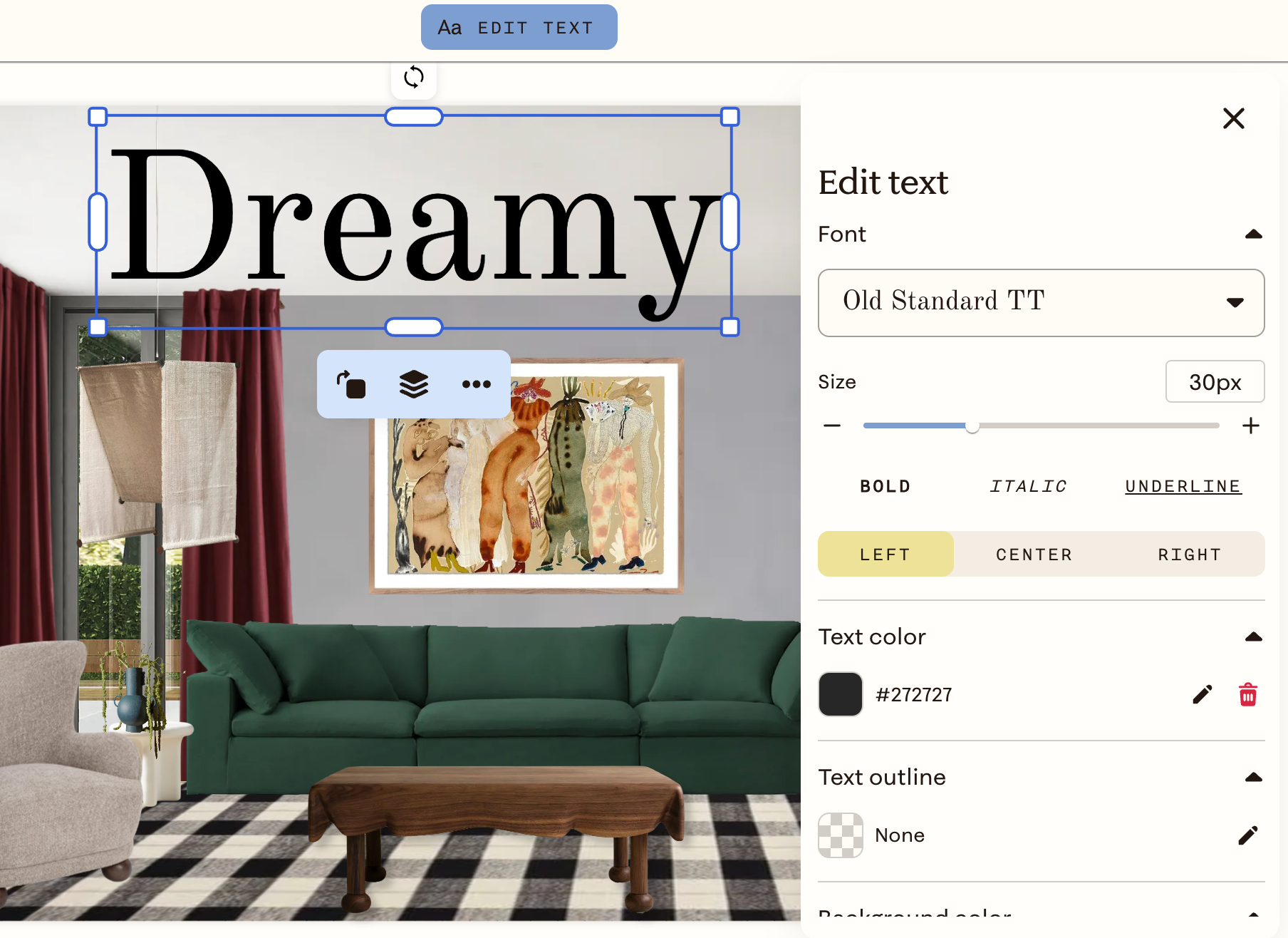
From there you can adjust:
Typography
- Font — choose from the font dropdown
- Size — use the slider or enter a value in px
- Style — Bold, Italic, Underline
- Alignment — Left, Center, or Right
Color and appearance
- Text color — set a custom color by hex value or color picker
- Text outline — add an outline and choose its color
- Background color — add a colored background behind the text
Effects
- Brightness and Opacity — adjust with sliders
- Drop shadow — click Add to apply a shadow
You can also resize and reposition the text box like any other item on the canvas.