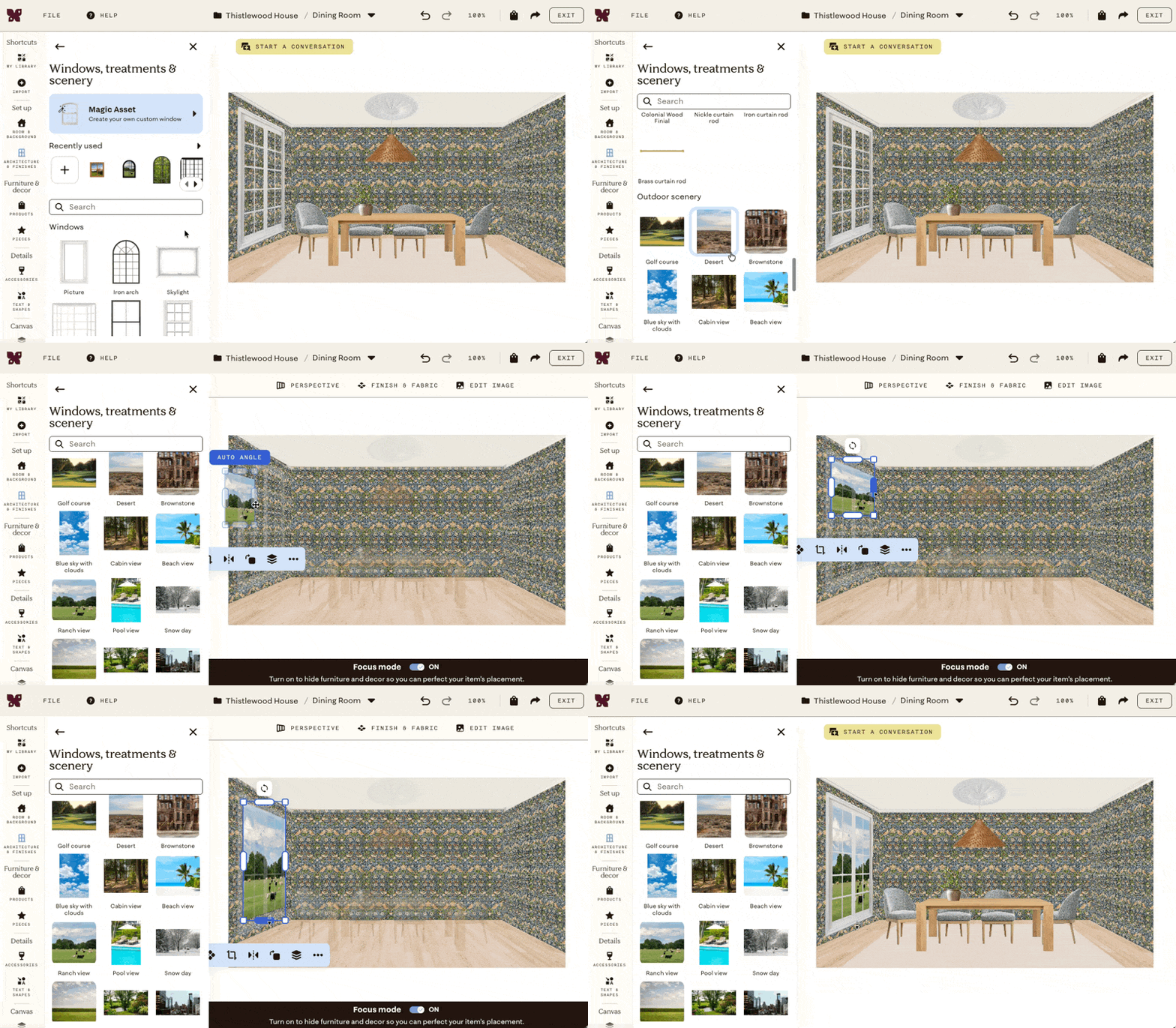
.png)
How can I edit the architecture & finishes in my design?
Architecture & Finishes is the section of the left sidebar for adding structural elements to your design — things that are part of the room itself rather than furniture or decor.
Click Architecture & Finishes in the left sidebar to open it.
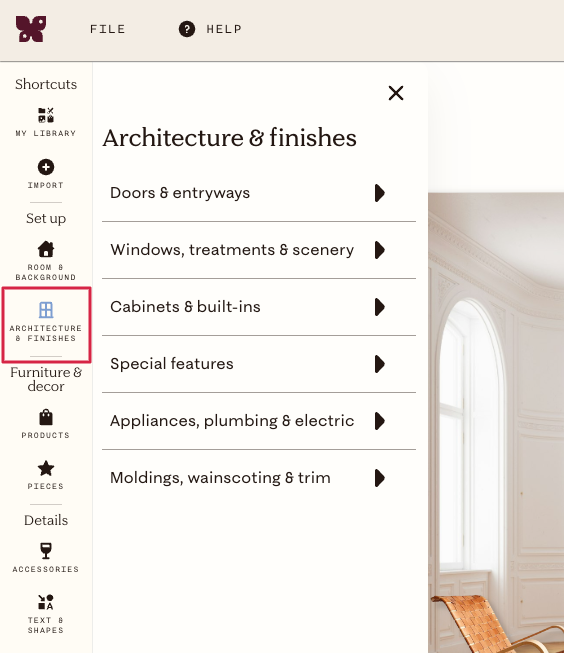
From here you can add and customize:
- Doors & Entryways — choose from the catalog, upload your own, or create a new one using Magic Asset. When you place door, Auto Perspective activates automatically so it snaps to the correct wall angle.
- Windows, treatments, & scenery — add windows, window treatments, and scenery to place behind windows to make them look realistic
- Moldings, wainscoting, & trim — put the finishing touches on walls
- Special features — fireplaces and other elements
- Appliances, plumbing, & electric— common fixtures to complete the space
Recoloring architectural elements
Select any architectural element on the canvas and use Finish & Fabric in the top toolbar to change its color or material. See Can I change the color of items in my design? for the steps.
Adding outdoor scenery to windows and doors
Outdoor scenery images are found in Windows, Treatments & Scenery. When you add one to your design, it automatically layers behind any windows or doors already placed on a wall and applies perspective to match. Place your windows and doors first, then add the scenery.
Creating custom architectural elements
Click into any category and click Magic Asset to use the AI-powered tool to create a completely custom asset