.png)
How do I add paint or wallpaper to the walls in my design?
Note: This guide is for designs built with a room from scratch. If you're working from a photo of a real space, click Magic Edit Background at the bottom of the Walls, floors, & ceilings panel (see Can I use Spoak to edit an image of my space?).
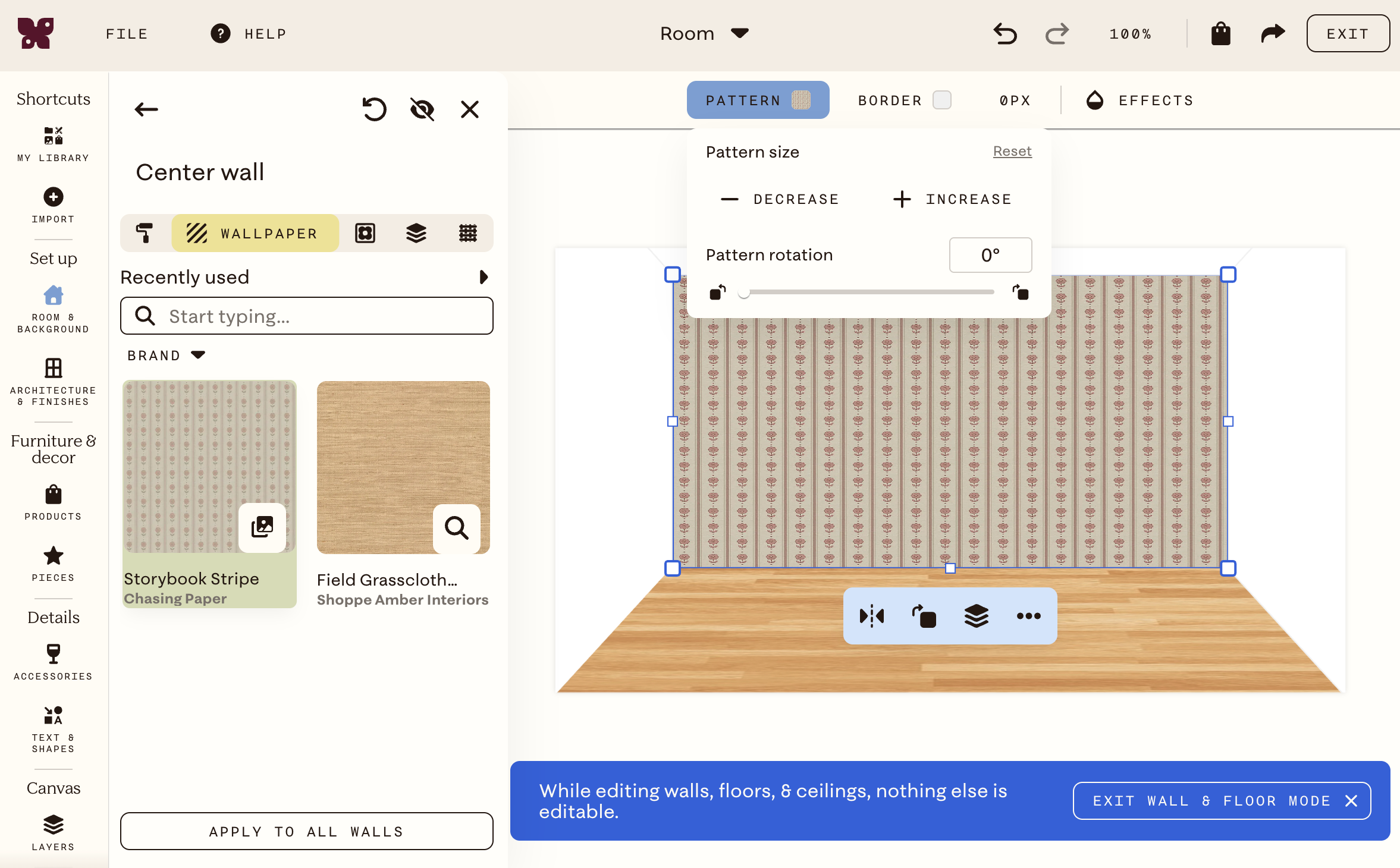
Adding paint
- Click Room & Background in the left sidebar. The Walls, floors, & ceilings panel opens.
- Click the wall you want to paint (Back wall, Left wall, or Right wall). The paint menu opens by default.
- Search by color name or brand, or use the color picker.
- Click a color to apply it to the selected wall.
- Use Apply to all walls to paint every wall at once.
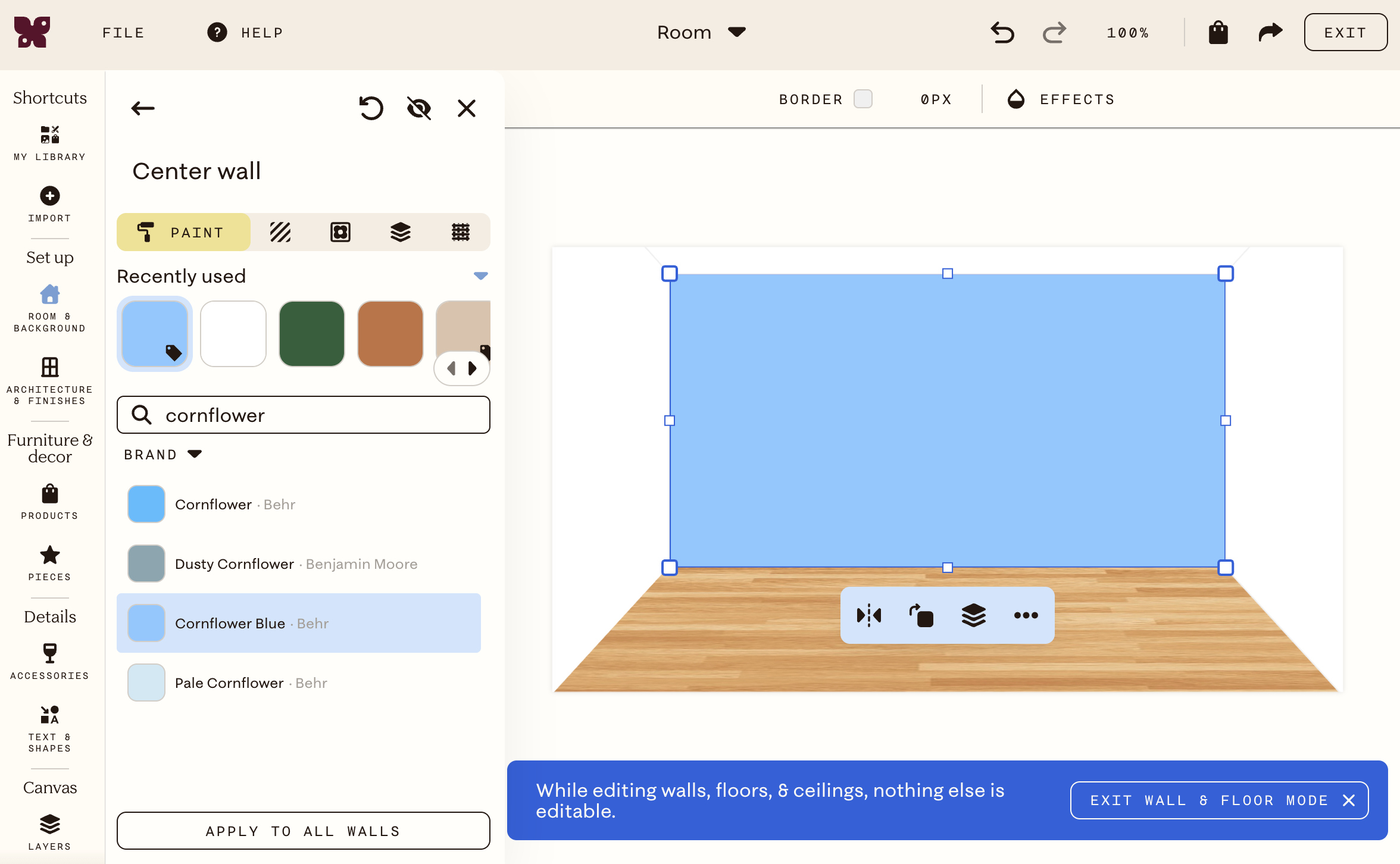
Adding wallpaper
- Click Room & Background in the left sidebar.
- Click the wall you want to wallpaper.
- Click Wallpaper to browse the catalog or scroll through wallpapers you've already imported.
- Select a pattern or click + under My wallpapers to upload your own.
- Crop the image to get a clean repeat, then click Apply.
To adjust scale or rotation after applying:
- Click the wall in your design.
- Click Edit to open the wall panel.
- Click Pattern in the top toolbar.
- Use Decrease / Increase to adjust the pattern size, or Reset to return to default.
- Use the Pattern rotation slider to rotate the pattern.